
Have you always wanted to build your own website but didn’t know where to start? Whether it’s for your portfolio, blog, or business, WordPress makes website creation simple — even if you’ve never written a line of code.
In this guide, I’ll show you exactly how to create a WordPress website from scratch — from choosing your domain name to customizing your design and going live. By the end, you’ll have a beautiful, functional website that represents you or your business online.
A friendly person sitting at a desk with a laptop, surrounded by icons of WordPress, hosting, domain, and website layouts, in a bright modern workspace — 3D flat illustration style.
What You’ll Need Before You Start
Before you dive into building your WordPress website, make sure you have the following essentials ready.
| Requirement | Description | Recommended Option |
|---|---|---|
| Domain Name | Your website’s unique address | Namecheap, Google Domains |
| Web Hosting | Server space where your site lives | Hostinger, Bluehost, SiteGround |
| WordPress | The content management system (CMS) | wordpress.org |
| Theme | The visual layout or design of your site | Astra, OceanWP, GeneratePress |
| Plugins | Add extra features and functionality | Yoast SEO, WPForms, Elementor |
Having these ready will save you time and ensure a smooth setup experience.
Step 1: Choose a Domain Name and Hosting
Your domain name is your online identity — it’s what users will type to reach your website (e.g., yourname.com).
Your hosting provider is the place where your website files are stored.
👉 Steps:
- Visit a domain registrar like Namecheap or Google Domains and search for your desired name.
- Keep it short, memorable, and easy to spell.
- Choose reliable hosting (like Hostinger, Bluehost, or SiteGround) with one-click WordPress installation.
- Connect your domain to your hosting by updating DNS nameservers.
💡 Pro Tip:
Choose a
.comor.indomain extension for better trust and recognition. Avoid long names, numbers, or special characters.
Step 2: Install WordPress
Most hosting providers make WordPress installation effortless — it takes just a few clicks.
| Hosting Type | Installation Method |
|---|---|
| Shared Hosting | One-click installer (via cPanel) |
| Managed WordPress | Pre-installed for you |
| VPS / Dedicated | Manual installation using Softaculous or command line |
Once installed, you can log in to your dashboard at:
👉 yourdomain.com/wp-admin
Step 3: Choose and Install a Theme
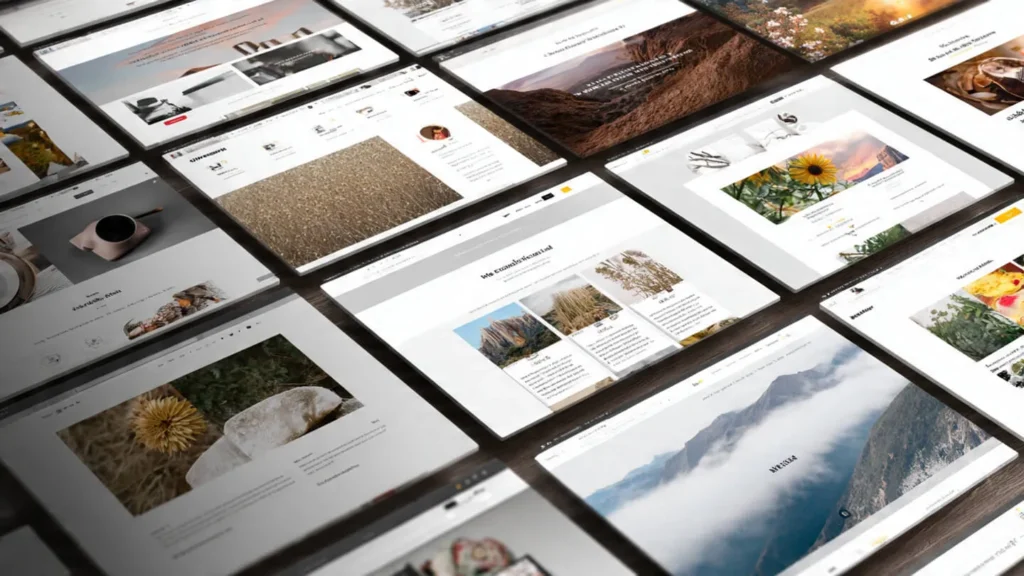
Themes define how your website looks and feels.
Go to Appearance → Themes → Add New, and you’ll find thousands of free options in the WordPress repository.
🔹 Recommended Themes for Beginners:
- Astra – Lightweight and customizable
- GeneratePress – Fast and SEO-friendly
- OceanWP – Ideal for business and portfolio sites
- Neve – Great for blogs and startups
Once you pick one, click Install → Activate.
🖼️ Image Prompt:
A computer screen displaying multiple website templates or WordPress themes grid view.
Step 4: Customize Your Website
Now it’s time to make your website truly yours.

Steps:
- Go to Appearance → Customize.
- Update your Site Title, Logo, Colors, and Fonts.
- Create your Navigation Menu (Home, About, Contact, Blog).
- Set your homepage under Settings → Reading.
💡 Pro Tip:
Always preview changes on mobile before saving. Responsive design improves SEO and user experience.
Step 5: Add Essential Plugins
Plugins extend your website’s functionality — like adding SEO tools, contact forms, or security features.
| Purpose | Plugin Name | Description |
|---|---|---|
| SEO | Yoast SEO / Rank Math | Optimize pages for search engines |
| Security | Wordfence / iThemes | Protect your site from attacks |
| Backup | UpdraftPlus | Automatic site backup |
| Contact Form | WPForms / Contact Form 7 | Simple form creation |
| Speed | WP Rocket / LiteSpeed Cache | Boost site performance |
💡 Pro Tip:
Only install the plugins you really need — too many can slow down your site.
Step 6: Create Pages and Posts
Your website content is divided into Pages and Posts.
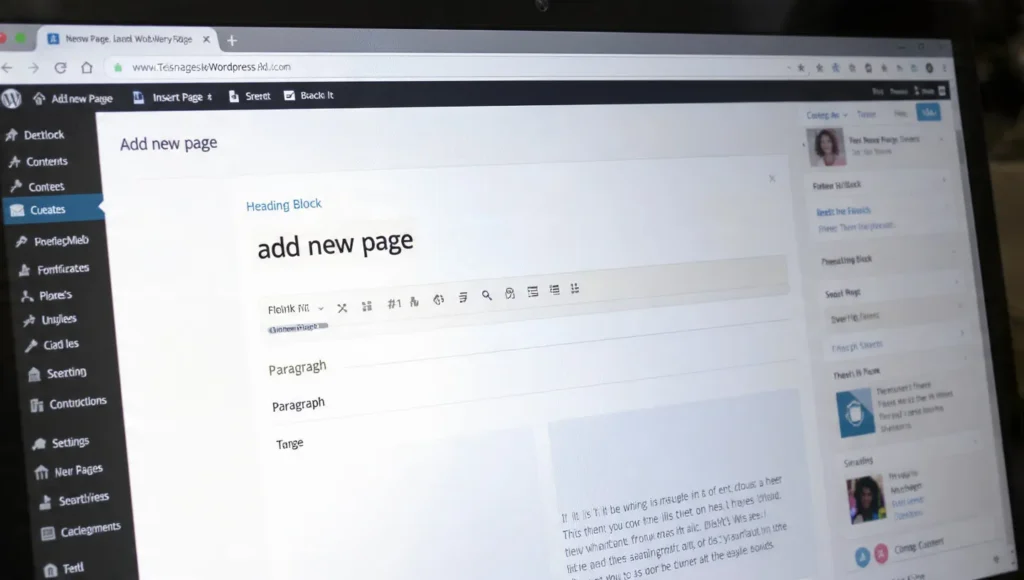
📄 Pages
Static sections such as Home, About, Services, and Contact.
📝 Posts
Dynamic blog articles that appear chronologically.
Steps:
- Go to Pages → Add New or Posts → Add New.
- Write your content using the Gutenberg Block Editor.
- Use headings, short paragraphs, and bullet lists for readability.
🖼️ Image Prompt:
A WordPress dashboard view showing the “Add New Page” screen with content blocks.
Step 7: Optimize for SEO and Speed
Search Engine Optimization (SEO) helps your site rank higher on Google, while speed optimization improves user experience.

✅ Basic SEO Tips:
- Use your main keyword naturally in title and headings.
- Write a meta description for every page.
- Add alt text to all images.
- Link internally to related posts.
⚡ Speed Optimization Tips:
- Use caching plugins (WP Rocket / LiteSpeed).
- Compress images using TinyPNG or ShortPixel.
- Enable a Content Delivery Network (CDN).
💡 Pro Tip:
Use Google PageSpeed Insights or GTmetrix to test site speed. Aim for loading times under 3 seconds.
Step 8: Launch Your Website
Before going live, double-check everything!

Final Pre-launch Checklist:
- Proofread all content
- Test all links and forms
- Install SSL certificate (for HTTPS)
- Submit your site to Google Search Console
- Backup your website
Once done — congratulations, your website is live!
Final Tips Before You Go Live
- Keep WordPress, themes, and plugins updated.
- Regularly back up your site.
- Use analytics tools (Google Analytics or Jetpack).
- Add fresh content frequently to boost SEO.
💡 Pro Tip:
A great website grows with time — keep improving its design, performance, and user experience.
Conclusion
Building a WordPress website from scratch might sound complicated, but once you follow these steps, it’s a fun and empowering experience.
Now you know how to:
- Buy a domain and hosting
- Install WordPress
- Customize your theme
- Add plugins and pages
- Optimize for SEO and launch successfully
Take your time to explore WordPress features, experiment with designs, and continue learning. Your website is the foundation of your digital identity — make it something you’re proud of!
FAQ
1. What is a WordPress Website?
A WordPress Website is a site built using the WordPress platform to create blogs, business sites, or online stores.
2. How do I create a WordPress Website?
Choose a domain, get hosting, install WordPress, pick a theme, and customize your site.
3. Is a WordPress Website free?
WordPress is free, but hosting and domain cost extra.
4. Is a WordPress Website good for beginners?
Yes, a WordPress Website is beginner-friendly and easy to set up.
5. Can I make a WordPress Website without coding?
Yes, WordPress lets you build websites using drag-and-drop tools.
6. How long does it take to build a WordPress Website?
A simple WordPress Website can be built in under an hour.