
Have you ever opened a WordPress theme marketplace and felt like you were scrolling through an infinite grocery aisle with 12 kinds of the same biscuit?
Yeah, choosing a WordPress theme feels exactly like that.
You know you want your website to look clean, load fast, and feel trustworthy. But there are literally 10,000+ themes, and everyone claims to be “fast,” “SEO-friendly,” and “highly customizable.” So where do you even start?
In this guide, I’ll walk you through the exact process I use when choosing themes for clients, students, and even my own projects.
By the end of this article, you’ll know:
- What makes a theme actually good
- Which red flags to avoid
- How to compare themes smartly
- How to test a theme before installing it
- And how to pick a theme that grows with your business
Let’s dive in.
Why Choosing the Right WordPress Theme Matters
A theme is more than just “how your website looks.”
It affects speed, SEO, security, user experience, and even how easy your website is to manage in the long run.
A bad theme is like buying cheap shoes — they look fine on day one, but the pain hits later.
A good theme?
It feels like a perfect fit from day one, grows with you, and saves you hours of frustration.
1. Start With Your Purpose (The Real Foundation)
Before you go theme-shopping, ask yourself one simple question:
“What type of website am I building?”
Because every website has different needs. A portfolio website doesn’t need advanced eCommerce features, and a news website doesn’t need fancy animations.
Here’s what I always tell people:
Your theme should match your purpose, not the other way around.
Examples of Purpose-Based Choices
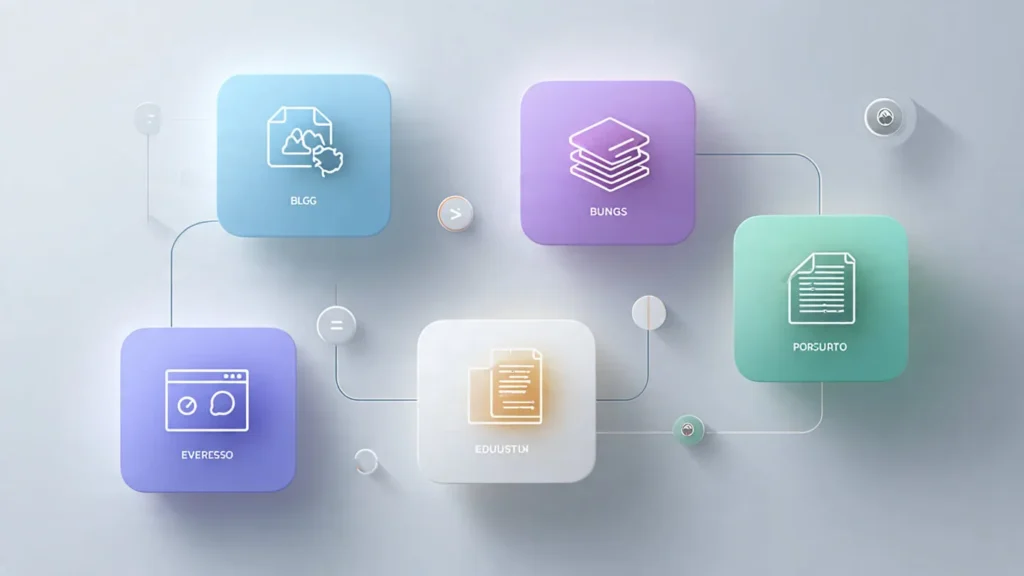
- Business Website: clean, professional, minimal
- E-commerce Website: WooCommerce-focused, product-first layout
- Blog or News: typography-focused, easy navigation
- Portfolio: image-heavy, visually engaging
- Educational/LMS: course-ready pages, lesson templates
- Landing Pages: conversion-focused, fast-loading
- Local Service Business: contact-first, mobile-friendly
Pro Tip:
Make a 1-line purpose statement like:
“I want a theme that makes my digital marketing services look premium and professional.”This alone filters out 70% of irrelevant themes.
2. Look for Speed-Optimized Themes (This Affects SEO!)
Here’s the truth most beginners miss:
Your theme controls more than 60% of your website’s loading speed.
In my experience, the fastest themes are the ones that are lightweight, modular, and don’t force unnecessary scripts down your throat.
What to Look For
- Lightweight structure (less than 50KB base file size)
- No bulky frameworks
- Minimal external scripts
- Clean code
- Compatibility with caching plugins
Fastest Themes (Real-World Tested)
- Astra
- GeneratePress
- Hello Elementor (only when you’re building fully with Elementor)
- Blocksy
Key Takeaway:
Fast themes improve your SEO, user experience, and even your conversions.
A slow theme is like a slow waiter — people simply walk out.
3. Ensure the Theme Is Mobile-Friendly (Most Traffic Is Mobile)
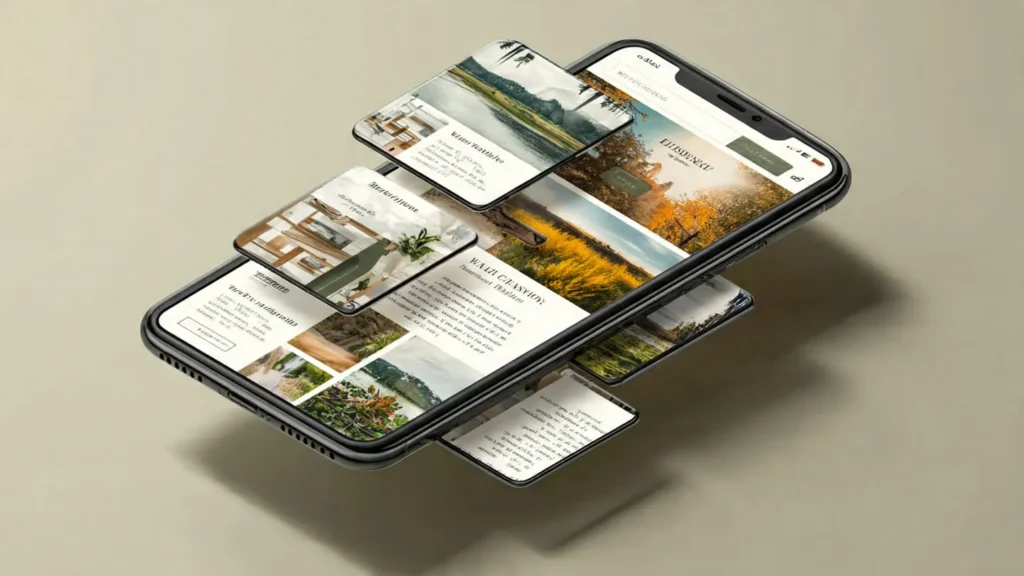
More than 60% of your visitors will view your site from a phone.
So if your theme looks messy on mobile, you’re losing people even before they see your content.
What to Check
- Fonts readable on small screens
- Buttons large enough for thumbs
- Spacing not too tight
- Navigation simple
- No overlapping sections
One thing I’ve found incredibly useful:
Always test a theme demo on your mobile before installing it.
4. Choose Themes That Work With Your Page Builder
Most beginners forget this part and regret it later.
If you are using:
- Elementor
- Gutenberg
- Bricks Builder
- Divi
- Beaver Builder
…then your theme MUST be compatible.
Best Matches
| Page Builder | Best Supporting Themes |
|---|---|
| Elementor | Hello, Astra, OceanWP |
| Gutenberg | GeneratePress, Blocksy, Kadence |
| Bricks | Bricks Theme only |
| Divi | Divi Theme |
| Beaver | Astra, GP |
Pro Tip:
Always choose a theme that gives you design freedom without forcing you to use its own builder or widgets.
5. Check Customization Options (Without Needing Coding Skills)
A good WordPress theme should make customization feel almost fun, not stressful.
What Good Customization Looks Like
- Drag-and-drop headers
- Multiple blog layouts
- Flexible footer builder
- Easy color and font changes
- Global design settings
- Pre-made templates
Avoid themes that require:
- Custom codes for basic styling
- Complex theme options panels
- Outdated “shortcode-based” editing
A theme should empower you, not trap you.
6. Prioritize SEO-Friendly Themes
A beautiful theme that’s bad for SEO is like a fancy restaurant with terrible food — looks good, performs poorly.
What Makes a Theme SEO-Friendly
- Lightweight code
- Fast-loading
- Schema markup
- Mobile-first structure
- Compatibility with major SEO plugins
- Clean headings and taxonomy
From my experience, themes like GeneratePress, Astra, Blocksy consistently rank better because of their clean code structure.
7. Check Plugin Compatibility (Very Important!)
You’ll eventually use plugins for:
- SEO (RankMath, Yoast)
- Security (Wordfence)
- E-commerce (WooCommerce)
- Forms (WPForms, Gravity Forms)
- LMS (LearnDash, TutorLMS)
Make sure your theme works flawlessly with them.
A theme that breaks when using WooCommerce is a massive red flag.
8. Look at Reviews, Ratings & Update Frequency
Your theme should be:
- Regularly updated
- Maintained by an active team
- Highly rated by users
- Downloaded frequently
- Supported with documentation
Red Flags
- No updates in the last 6 months
- Too many complaints about bugs
- Too many bundled plugins
- No documentation or demo setup guide
Trust me, an abandoned theme is a headache waiting to happen.
9. Free Theme vs Paid Theme (Comparison Table)
Here’s a simple comparison:
| Feature | Free Theme | Paid Theme |
|---|---|---|
| Customization | Basic | Extensive |
| Support | Limited | Priority support |
| Speed | Good | Excellent |
| Templates | Few | Many |
| SEO Quality | Good | Great |
| Updates | Slower | Frequent |
| Price | Free | ₹2,000–₹5,000 yearly |
My recommendation:
If you’re building a professional website, a premium theme is almost always worth it.
10. Myth-Busting: “All Themes Look the Same Once You Customize Them”
Not true.
A theme controls:
- Layout structure
- Speed
- Code quality
- Header/footer system
- Responsiveness
- Plugin support
You can customize visuals.
You cannot customize the code quality hidden inside the theme.
Always choose quality > design.
11. Real-World Analogy: Choosing a Theme Is Like Choosing a House
Think of your WordPress theme like a house.
- The structure = theme
- The decor = page builder
- The furniture = plugins
A good house makes it easy for you to decorate and move around.
A bad house?
You’ll constantly struggle with broken doors, small rooms, and weird layouts.
So choose the house wisely.
Decor comes later.
12. A Short Story: My Worst Theme Decision Ever
Years ago, I bought a theme because it “looked premium.”
The demo was stunning.
But after installing it, I realized it loaded 120+ scripts, broke every plugin, and took 9 seconds to open the homepage.
I rebuilt the entire site the next day using GeneratePress.
Lesson learned: never judge a theme by its demo alone.
13. Questions You Should Ask Before Installing Any Theme
- Does it match my website’s purpose?
- Is it fast and lightweight?
- Does it work with my preferred builder?
- Is it mobile-friendly?
- Is it updated regularly?
- Does it work well with essential plugins?
- Is the support good?
If a theme passes these questions, you’re safe.
Conclusion: Pick a Theme That Works With You, Not Against You
Choosing the right WordPress theme isn’t about finding the fanciest design.
It’s about creating a website that’s:
- Fast
- Professional
- Easy to manage
- SEO-friendly
- And built to grow with your brand
Now that you know how to choose the perfect theme, go ahead and explore the top contenders with confidence.
Your turn:
Which theme are you planning to use — Astra, GeneratePress, Blocksy, or something else?
Tell me in the comments — I’d love to help you choose the perfect one.